If  or
or  still makes you stop and think, let the tile tell you. Open Display in the top bar (on a phone or tablet, the sliders button next to search) and set Indexed tiles to On. Every tile you read here gets a small number or letter in its top corner.
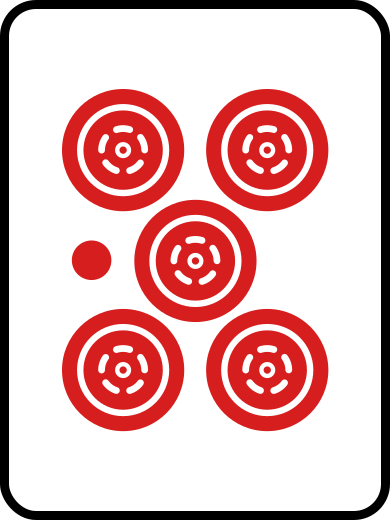
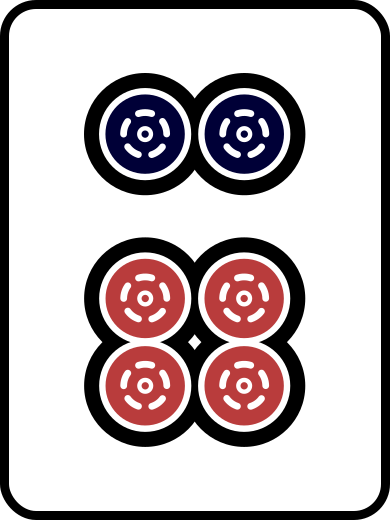
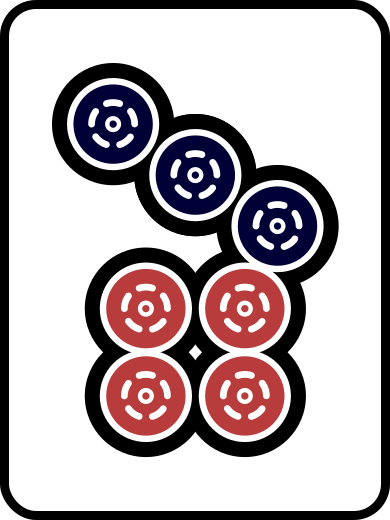
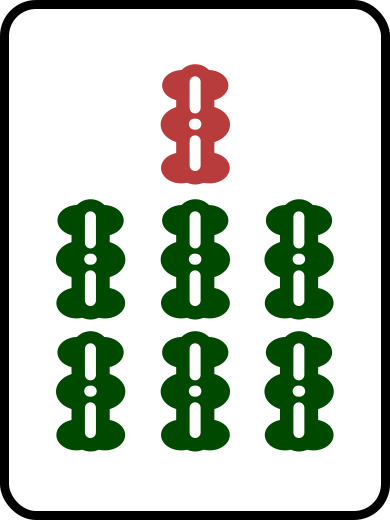
Switch it on and watch this hand. It changes the moment you click:

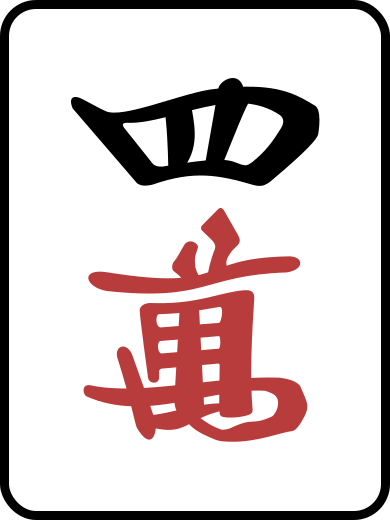

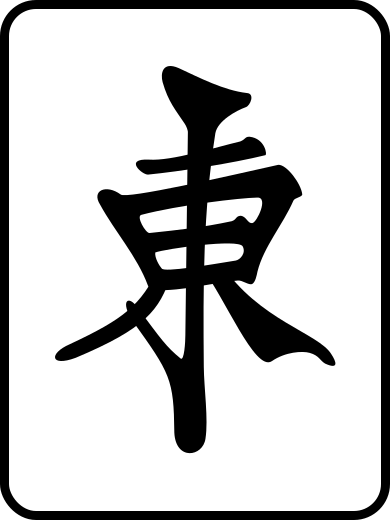

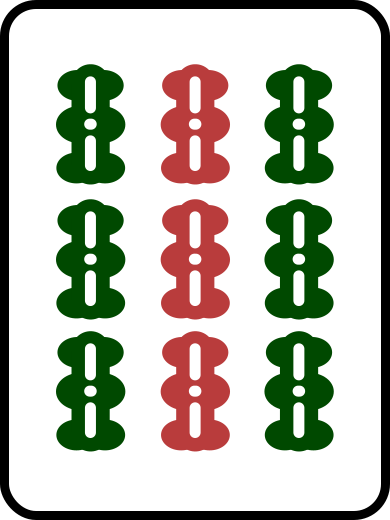
What the index tells you
The index gives the number or the name. You can already see the suit: carry the 萬 character, are circles, and are bamboo.
| Tiles | Index |
|---|---|
| , , and | 1 to 9 |
| Red fives | 5, in red |
| Winds: East, South, West, and North | E, S, W, N |
| Dragons: white, green, and red | Wh, Gr, Rd |
The gains the most. is blank in every set on this site, and until you know that, it looks like a missing picture. With the index on, it says Wh.
The index shows wherever the site draws a tile for you to read: hand diagrams, tiles in a sentence like the two above, the free course, the tools, and the daily discard problem. Those inline tiles get bigger while it's on, so the number stays readable. Post covers and share images stay as drawn.
Treat it as training wheels. The goal is to read the faces at a glance.
Display settings live in one menu
One Display button holds Theme, Reading mode, Tiles, and Indexed tiles, with a one-line note under each. It replaces the row of small theme and tile icons that used to sit in the top bar.
On a phone, a tablet, or a small laptop, the button is the sliders icon next to search. The same settings also sit at the bottom of the main menu, after Tools.
Your choices stay in your browser. Nothing goes to a server, and the privacy page lists each one.
Posts and lessons open in Paper
Paper sets the text in one serif column and hides the sidebar. To get it back, switch Reading mode to Digital at the top of any post or lesson, or in the Display menu. On a wide screen, Digital shows the contents list, plus the glossary lookup on posts.
Auto is the default theme
Auto copies the light or dark setting on your phone or computer and switches when you change it there. Pick Light or Dark to hold one look. If you chose one before, it's still set.
Pick a tile set
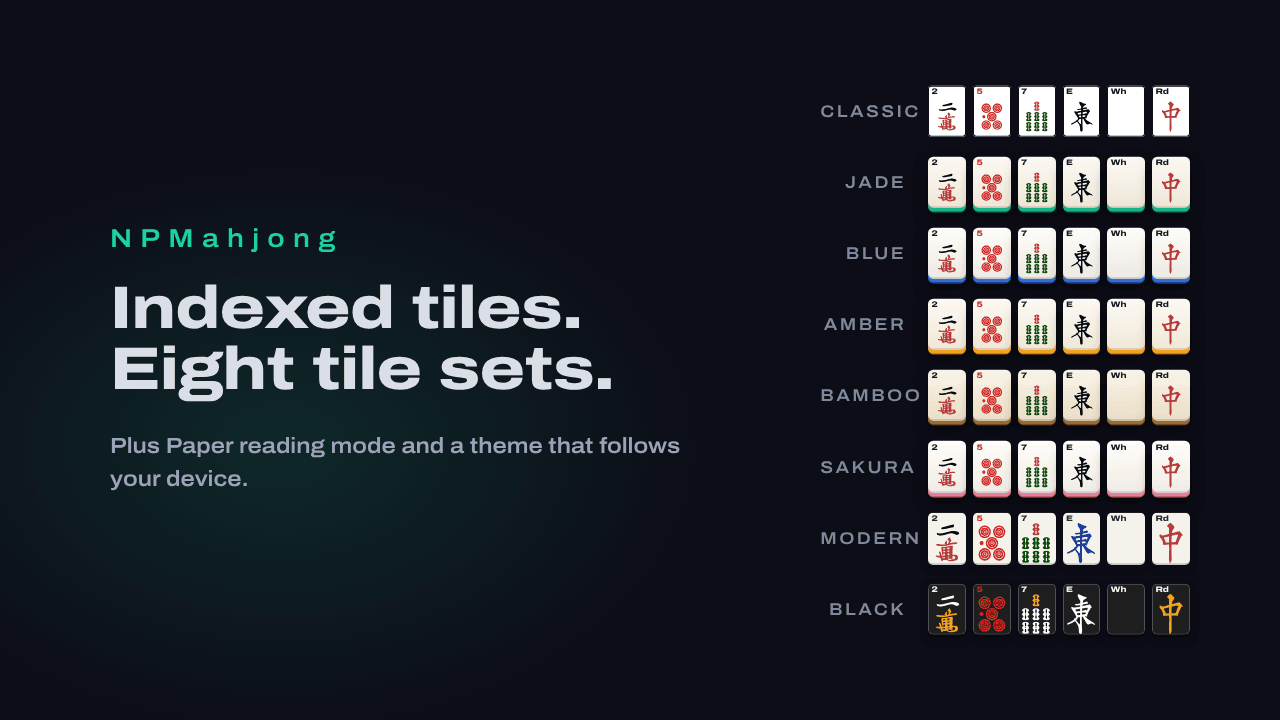
Switch sets under Tiles in the Display menu, where each one shows as a small tile.
- Classic: a white face with a black outline. It's the default.
- Jade, Blue, Amber, Bamboo, and Sakura: the same faces on an ivory tile with a colored edge. Jade is green, Bamboo is brown, and Sakura is pink. Blue and Amber match their names.
- Modern: a soft white face with blue winds.
- Black: a black face with white and gold symbols. Red fives stay red, and it suits dark mode.
Modern and Black come from FluffyStuff's riichi-mahjong-tiles, which its author released into the public domain. Indexed tiles work with all eight.
Pick the set you like, then try today's problem with the index on. Once you stop glancing at the corner, switch it off.

Was this article helpful?